
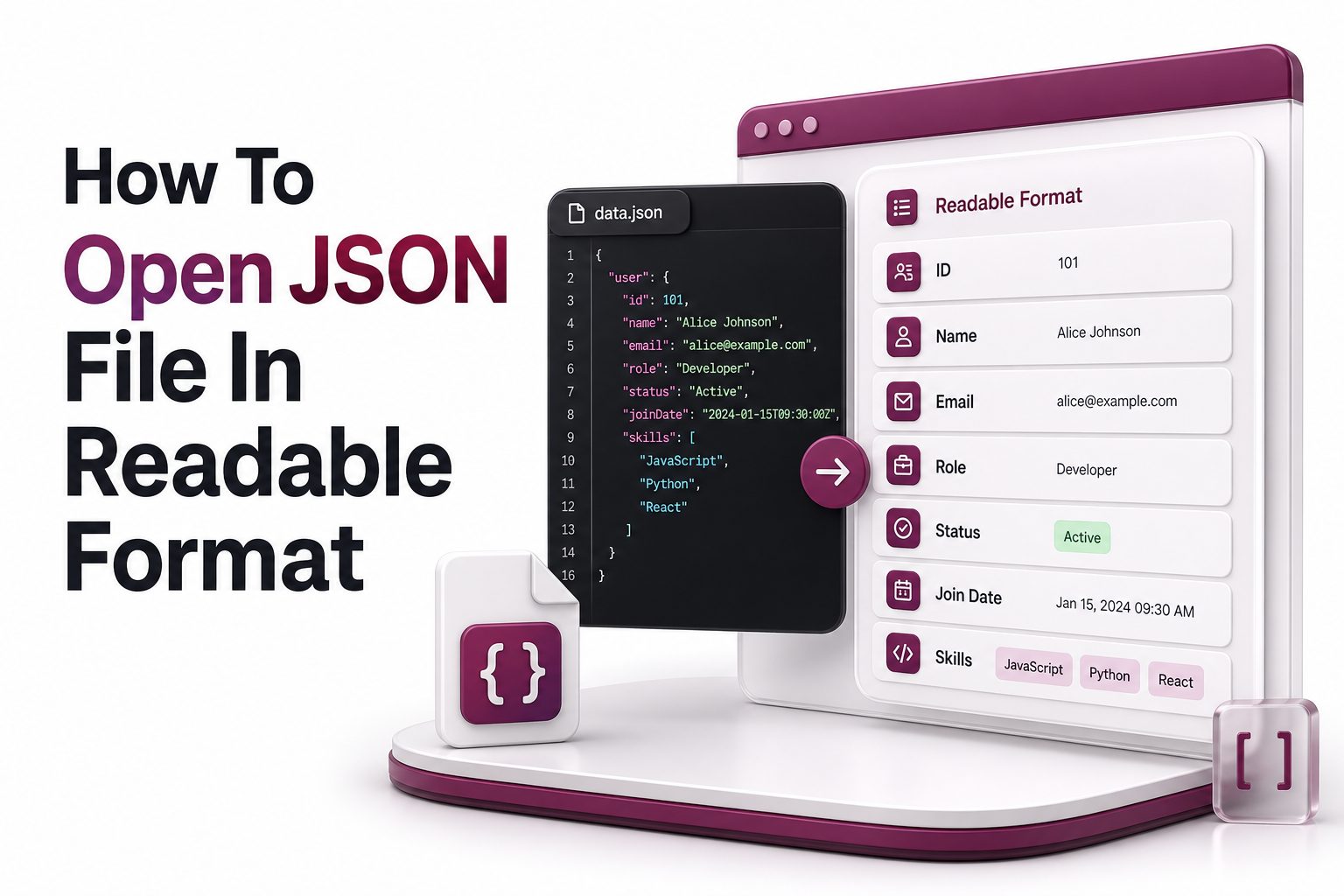
A JSON file often looks confusing when it appears as one long line of text. The data may be correct, but without indentation, spacing, and structure, it becomes difficult to read, edit, or share with another person.
The easiest way to open json file in readable format is to use a text editor, browser extension, online formatter, or code editor that supports JSON formatting. These tools arrange keys, values, arrays, and objects into a clean layout.
Readable JSON helps you see the relationship between data fields. Instead of scanning a crowded block of symbols, you can follow each section clearly and spot missing commas, broken brackets, or incorrect values with less effort.
What a JSON File Contains
JSON stands for JavaScript Object Notation. It stores data in a lightweight text format using key-value pairs, arrays, strings, numbers, true or false values, and null values. Many apps, websites, APIs, and software tools use it.
A JSON file may contain user settings, product data, API responses, configuration details, or exported records from a database. Although it is made for machines, humans can read it when the file is properly formatted.
The main challenge is presentation. A valid JSON file can still look unreadable if it has no line breaks or indentation. Formatting does not usually change the data; it only makes the structure easier to view.
Quick readability checklist
- Use a JSON formatter when the file appears as one long line.
- Use a code editor for large files or regular JSON work.
- Check that brackets, braces, commas, and quotation marks are balanced.
- Avoid editing JSON in word processors because they may change quotation marks.
- Save a backup before changing important configuration files.
- Validate the file after editing to catch syntax errors.
- Use search inside the editor to find specific keys quickly.
Best Tools for Reading JSON Files
A modern code editor is one of the best options for viewing JSON. Visual Studio Code, Sublime Text, Notepad++, and similar editors can apply indentation, color highlighting, folding, and error detection for cleaner reading.
Browsers can also open JSON files, especially when the file is from a web API. Some browsers display JSON in a structured layout automatically, while others may need an extension that formats JSON responses.
Online JSON formatters are useful for quick viewing when the data is not private. You paste the raw JSON, run formatting, and copy the readable result. For sensitive files, local editors are safer than web-based tools.
Opening JSON in a Code Editor
Visual Studio Code is a strong choice because it recognizes JSON files automatically. When you open a .json file, it applies syntax colors and usually shows errors if the structure contains invalid commas, quotes, or brackets.
If the file appears compressed, use the editor’s format document command. In many editors, this can be found through the command palette, right-click menu, or keyboard shortcut. The result is a properly indented layout.
A code editor also helps with large JSON files. You can collapse sections, search keys, compare versions, and install extensions for validation. For regular content, SEO, API, or development work, this is the most reliable option.
Recommended local workflow
- Open the JSON file in Visual Studio Code or another trusted editor.
- Duplicate the file before making changes.
- Run the format document command.
- Review the structure from the outer object inward.
- Search for the field you need instead of reading every line.
- Save only after validating the edited file.
- Keep the original filename and extension when the file must be reused by software.
Opening JSON in a Browser
A browser is useful when you receive JSON from a URL or API endpoint. If the browser supports formatted JSON, it will show expandable objects and arrays, making the file easier to scan without installing extra software.
For local files, you can usually drag the JSON file into the browser window. Some browsers may show plain text, while others may format the data. Extensions can improve the display with colors, indentation, and folding.
A browser is best for reading and checking data, not for editing. If you need to change values, use a code editor. This reduces the chance of copying incomplete data or accidentally damaging the file structure.
Using Online JSON Formatters
Online JSON formatters are convenient for quick cleanup. You paste raw JSON into a box, select format or beautify, and receive an indented version. This is helpful when someone sends compressed JSON in an email or ticket.
These tools often include validation. If the JSON is broken, the formatter may show the line where the problem starts. Common issues include missing commas, trailing commas, single quotes, and unclosed brackets.
Use online tools carefully. Do not paste private customer data, API keys, passwords, analytics exports, or internal business files into public websites. For sensitive content, choose an offline formatter or a trusted local editor.
Useful related guides
JSON formatter tools: /json-formatter-tools
How to edit configuration files: /edit-configuration-files
Opening JSON in Notepad or TextEdit
Basic text editors can open JSON files because JSON is plain text. On Windows, Notepad can display the content. On macOS, TextEdit can open it when the file is treated as plain text instead of rich text.
The limitation is readability. Basic editors may not color the syntax, validate the structure, or format compressed content. If the JSON file is short, this may be fine. For larger files, a code editor is much better.
Avoid using word processors such as Microsoft Word or Google Docs for JSON editing. They can replace straight quotes with smart quotes or add hidden formatting, which may break the file when another system reads it.
Opening JSON in Excel or Spreadsheets
Excel can import certain JSON files, especially when the data is structured as rows or records. Power Query helps convert JSON objects and arrays into tables, which can be useful for reviewing exported business data.
This works best when the JSON has repeated objects with similar fields. For example, a product catalog, contact list, or order export can often become a table with columns such as name, price, status, and date.
Not every JSON file fits neatly into Excel. Deeply nested data can become difficult to flatten. If your goal is simple reading, use a formatter first. If your goal is analysis, a spreadsheet may be useful.
When Excel is a good option
- The JSON file contains repeated records.
- You need sorting, filtering, or simple reporting.
- The data has consistent fields across entries.
- You are reviewing exported product, order, or customer data.
- You do not need to preserve the original nested structure.
- You plan to share the data with nontechnical users.
- The file does not contain sensitive values that need special handling.
How Formatting Makes JSON Readable
Formatting adds line breaks and indentation. It separates objects, arrays, and values so the reader can follow the hierarchy. A nested object becomes easier to scan because each level moves slightly to the right.
A readable JSON file usually starts with either an object or an array. Objects use curly braces, while arrays use square brackets. Inside them, each item appears on its own line, making the file easier to inspect.
Good formatting also supports faster troubleshooting. If a section fails, you can narrow the issue by looking at the surrounding keys and values. Clean layout makes errors more visible than a compressed single-line file.
Common JSON Problems That Affect Reading
One common issue is invalid syntax. JSON requires double quotes around keys and string values. Single quotes are not valid JSON, even though some programming languages allow them in similar-looking data structures.
Another issue is missing or extra commas. Each item in an object or array needs correct separation, but the final item cannot have a trailing comma. This small mistake can stop the file from loading.
Unclosed braces or brackets also make JSON hard to read. When nesting gets deep, it becomes difficult to see where each section ends. Code editors help by highlighting matching brackets and marking syntax errors.
Simple JSON error checks
- Confirm that strings use double quotes.
- Check that every opening brace has a closing brace.
- Check that every opening bracket has a closing bracket.
- Remove trailing commas after the final item.
- Make sure each key has a value.
- Validate after every important edit.
- Keep indentation consistent for easier review.
Reading Large JSON Files
Large JSON files can be slow in basic editors. If the file contains thousands of lines or many nested sections, use a code editor designed to handle large text files with search, folding, and syntax highlighting.
For very large files, a viewer that supports streaming or tree navigation may work better. These tools let you expand only the parts you need instead of loading every section visually at the same time.
When reviewing large JSON, start with the top-level keys. These usually tell you the main categories inside the file. From there, open only the relevant arrays or objects and search for the exact field names.
Editing JSON Without Breaking It
Before editing JSON, make a copy of the file. This is especially important for configuration files, website settings, app exports, and API data. A small syntax error can stop software from reading the file correctly.
Change one section at a time and validate after each important edit. If the file breaks, you will know where the issue likely happened. This approach is faster than editing many areas and searching later.
Do not remove quotation marks, commas, braces, or brackets unless you know their role. JSON depends on these characters. A readable layout helps, but the structure must still follow strict syntax rules.
Safe editing habits
- Work on a copied file first.
- Use a code editor with JSON support.
- Format before editing.
- Make small changes in one area.
- Validate before saving the final version.
- Avoid smart quotes and rich text editors.
- Keep the original encoding when possible.
Choosing the Right Method
The best method depends on your goal. If you only need to read a small file, a browser or simple editor may be enough. If you need regular editing, a code editor is the better choice.
For quick cleanup of non-sensitive data, an online formatter is convenient. For private data, use local software. For business records that need sorting or reporting, Excel or a spreadsheet tool may be practical.
A professional workflow often uses more than one tool. You might format JSON in a code editor, validate it locally, then import selected records into a spreadsheet for review. The right path depends on the data.
JSON Readability for Content and SEO Work
Content teams often meet JSON through schema markup, website exports, plugin settings, and API data. When the file is readable, it becomes easier to review titles, descriptions, URLs, ratings, authors, and structured content fields.
SEO work may include checking structured data in JSON-LD format. A readable view helps confirm that required fields are present and values match the visible page content. This reduces mistakes before publishing or testing.
For content writers, readable JSON is not only a technical convenience. It helps teams review data-driven content, metadata, redirects, product information, and article settings with more confidence before handing files to developers.
Final Best Practices
Use a trusted code editor when accuracy matters. It gives you formatting, validation, search, and syntax highlighting in one place. This keeps the process practical whether you are reading a short snippet or a full file.
Use online tools only when the data is safe to share. Many JSON files contain private values, tracking details, account settings, or business information. Local tools reduce exposure and give you more control.
Keep the file readable after every edit. Consistent indentation, clear structure, and validation make JSON easier to review later. Clean files also help teammates, developers, analysts, and content teams work with the same data.
Conclusion
Learning how to open json file in readable format makes technical data easier to review, edit, and share. The right tool can turn a crowded block of text into a clean structure with visible keys, values, arrays, and objects.
For most users, a code editor is the best all-around option. Browsers, online formatters, Notepad, TextEdit, and Excel can also help depending on the file size, privacy level, and purpose of the data.
Readable JSON saves time and reduces mistakes. Whether you are reviewing website settings, API responses, schema markup, or exported records, clean formatting gives you a clearer path from raw data to useful information.
FAQs
What is the easiest way to read a JSON file
The easiest way is to open the file in a code editor such as Visual Studio Code and run the format document command. It adds indentation, highlights syntax, and helps you spot errors without changing the actual data.
Can I open a JSON file in Chrome
Yes, Chrome can open JSON files from URLs or local storage. Some files may appear as plain text, while formatted API responses may look structured. A JSON viewer extension can make Chrome more useful for reading complex files.
Is it safe to use an online JSON formatter
It is safe for public or sample data, but not for private files. Avoid pasting passwords, API keys, customer details, analytics exports, or internal settings into online tools. Use a local editor for sensitive JSON files.
Why does my JSON file appear on one line
Many systems compress JSON to save space and transfer data faster. The file is still valid, but it is not easy to read. A formatter or code editor can add line breaks and indentation for a cleaner view.
Can Excel open JSON files
Excel can open many JSON files through Power Query, especially when the data contains repeated records. Deeply nested files may need cleanup or flattening first. Excel is useful when you want filtering, sorting, or table-based review.
0 Comments