
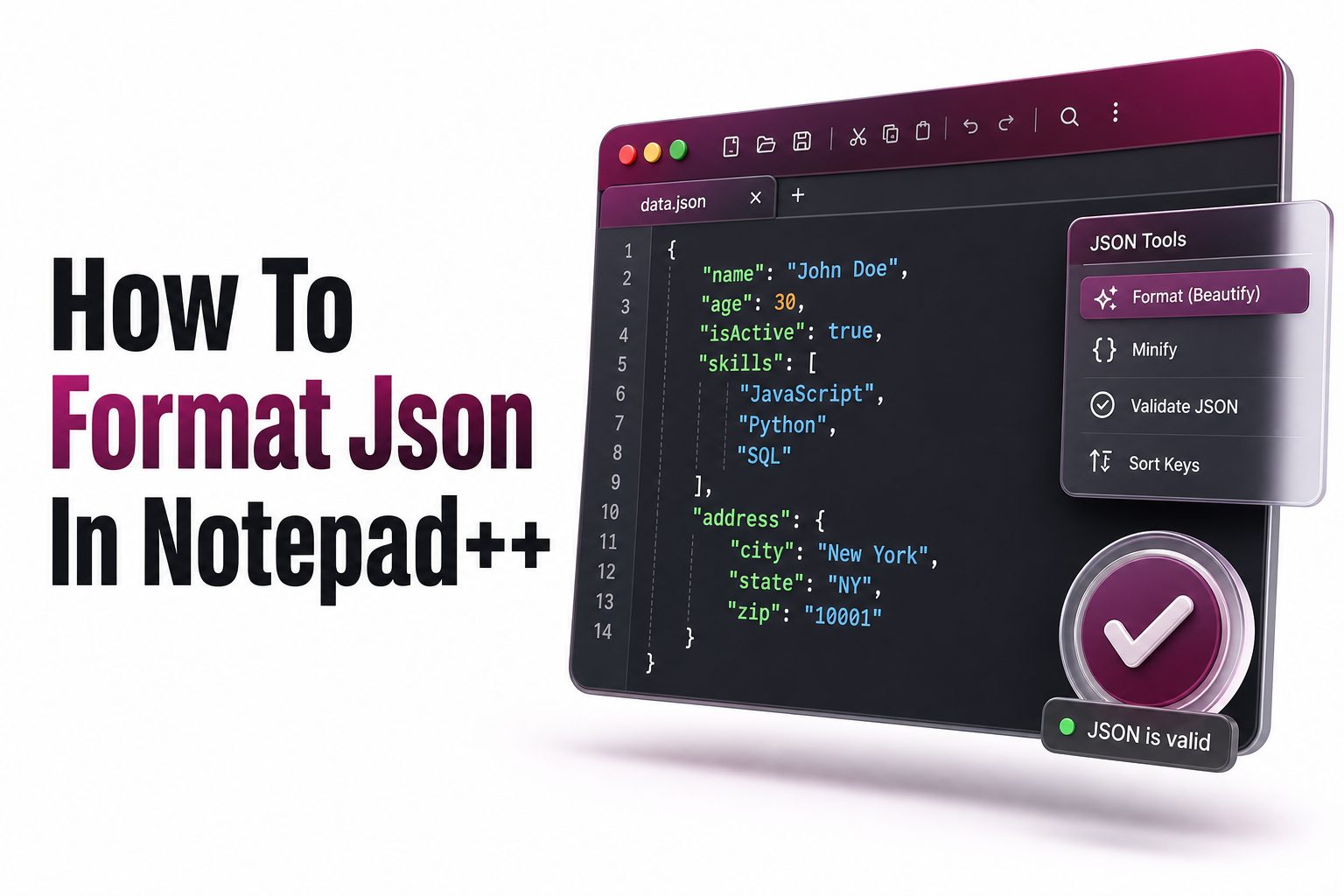
If you work with API responses, configuration files, or structured data, knowing how to format JSON in Notepad++ can save time and reduce mistakes. Raw JSON is often difficult to read when it appears as one long, unbroken line.
Notepad++ is lightweight, fast, and familiar to many writers, developers, analysts, and technical teams. With the right plugin or formatting method, it becomes a practical tool for viewing, editing, and organizing JSON content without opening heavier software.
Formatted JSON helps you spot missing commas, nested objects, arrays, and incorrect values more quickly. It also improves collaboration, because clean indentation makes the file easier for other people to review, edit, and reuse.
Why JSON Formatting Matters
JSON stores information in a structured format using keys, values, objects, and arrays. When this structure is compressed, even a simple file can become hard to scan. Formatting adds spacing and indentation so the hierarchy becomes visible.
Poorly formatted JSON can slow down content updates, website fixes, and API testing. A single misplaced bracket or comma may break an integration, and it is much easier to find that problem when the file is properly arranged.
Clean JSON also supports better documentation. If you write tutorials, technical guides, or product content, readable examples improve trust and help readers follow your instructions without confusion.
Quick Benefits of Formatting JSON
Clean JSON formatting gives you several practical advantages during editing and review.
It makes nested objects easier to read.
It helps identify missing commas and brackets.
It improves API response inspection.
It supports clearer technical documentation.
It reduces mistakes during manual edits.
It makes copied code examples easier to reuse.
Using Notepad++ for JSON Files
Notepad++ is a plain text editor, but it supports many programming and data formats through language settings and plugins. JSON files can be opened directly, edited quickly, and saved without adding unnecessary formatting from word processors.
The editor is useful because it does not change your file structure behind the scenes. You can paste raw JSON, format it, validate it, and copy the cleaned version into your CMS, API client, or development environment.
For related cleanup tasks, you can use an internal resource such as JSON formatter online when you need a browser-based option. Notepad++ is better when you want local editing and direct control over the file.
Installing the JSON Plugin
The easiest way to format JSON in Notepad++ is by installing a JSON plugin. Many users rely on JSON Viewer because it provides formatting, tree view, and validation features inside the editor.
Open Notepad++, go to Plugins, then Plugin Admin. Search for JSON Viewer, select it, and install it. Notepad++ may restart after installation, so save any open work before you begin.
After installation, paste or open your JSON file. Go to Plugins, choose JSON Viewer, and select the formatting option. The raw JSON will be arranged with indentation, line breaks, and a readable structure.
Steps to Install JSON Viewer
Open Notepad++ on your computer.
Go to the Plugins menu.
Select Plugin Admin.
Search for JSON Viewer.
Check the plugin name.
Click Install.
Restart Notepad++ if prompted.
Open or paste your JSON file.
Use the plugin menu to format the content.
Formatting JSON with JSON Viewer
Once JSON Viewer is installed, formatting becomes simple. Paste your compact JSON into Notepad++ or open an existing .json file. Then use the plugin command to format the text into a readable layout.
The plugin adds indentation based on the structure of your data. Objects appear inside braces, arrays appear inside brackets, and nested values move onto separate lines. This makes the relationship between fields much clearer.
If the plugin cannot format the file, the JSON may contain a syntax error. Check for missing quotes, extra commas, broken brackets, or invalid characters before trying again.
Using JSTool as an Alternative
JSTool is another popular Notepad++ plugin for formatting JavaScript and JSON content. It can format, compress, and validate JSON, making it useful for people who move between scripts and structured data files.
You can install JSTool through Plugin Admin in the same way as JSON Viewer. After installation, the plugin menu gives you options for formatting JSON, compressing JSON, and checking syntax.
Some users prefer JSTool because it includes several practical editing features in one place. If JSON Viewer is unavailable or does not match your workflow, JSTool is a reliable alternative for day-to-day JSON cleanup.
JSON Viewer and JSTool Comparison
JSON Viewer is strong for reading and inspecting JSON visually.
JSTool is useful when you also work with JavaScript.
JSON Viewer offers a clear tree-style layout.
JSTool includes compacting and formatting tools.
Both plugins help detect invalid JSON.
Either option works well for routine formatting.
Choose the plugin that fits your editing habits.
Formatting Minified JSON
Minified JSON removes spaces and line breaks to reduce file size. This is common in API responses, exported settings, and production files. While efficient for systems, minified JSON is difficult for people to read.
When you paste minified JSON into Notepad++, a formatter can expand it into multiple lines. Each level of nesting receives indentation, allowing you to scan the data from top to bottom without losing track.
After editing, you may need to minify it again before using it in a production environment. Many plugins provide both format and compress options, so you can switch between readable and compact versions.
Validating JSON Before Saving
Formatting makes JSON readable, but validation confirms whether the structure is correct. A file can look clean and still contain a small error that prevents an application from reading it properly.
Use the validation feature in your chosen plugin after formatting. If the JSON is invalid, the plugin may show an error location or message. Review the nearby line carefully, because the actual issue may appear just before the reported point.
Validation is especially important when editing configuration files. A broken JSON setting can affect website behavior, plugin settings, automation scripts, or API requests, so it is worth checking before saving changes.
Common JSON Errors to Check
Missing commas between key-value pairs.
Extra commas after the final item.
Unclosed braces or brackets.
Keys without double quotes.
String values with broken quotation marks.
Invalid comments inside JSON files.
Mixed single and double quotes.
Unexpected characters copied from formatted documents.
Best Settings for Readable JSON
Readable JSON depends on consistent indentation. Most teams use two or four spaces per level. Either option works, but consistency matters more than the exact number of spaces.
Notepad++ lets you adjust tab and indentation settings through Preferences. If your team follows a style guide, match that format so your files remain consistent across documentation, code examples, and shared repositories.
You should also set JSON as the language mode when editing. This adds syntax highlighting, making keys, strings, numbers, and symbols easier to identify while you review or update the file.
Working with Large JSON Files
Large JSON files can slow down editors, especially when they contain thousands of lines or deeply nested objects. Notepad++ is fast, but plugins may take longer to format very large data sets.
If a file is extremely large, save a backup before formatting. Then try formatting a copied version first. This protects the original file in case the editor becomes unresponsive or the plugin fails midway.
For very large files, an internal guide like validate JSON file can support a separate workflow. You may use Notepad++ for inspection and a dedicated validator for heavier checks.
Tips for Large JSON Files
Save a backup before editing.
Work on a copy when possible.
Avoid formatting files during active system use.
Use search to find specific keys.
Collapse sections if your plugin supports it.
Validate after every major edit.
Split sample data for documentation work.
Do not overwrite production files without review.
Formatting JSON for Blog Tutorials
Content writers often use JSON examples in tutorials about APIs, schema markup, analytics, and configuration. In these cases, formatting affects reader experience as much as technical accuracy.
A clean JSON example helps readers copy the code and apply it correctly. If the structure is messy, beginners may miss important details or introduce errors while adapting the sample to their own project.
Before publishing, format the JSON in Notepad++, validate it, and review the indentation. This small step improves the quality of your guide and reduces confusion for readers who follow your instructions.
Using Notepad++ with API Responses
API responses often arrive as compact JSON. When testing endpoints, you may copy the response from a browser, API tool, or log file into Notepad++ for easier inspection.
Formatting the response helps you locate status messages, error details, user fields, product data, and nested arrays. This is useful when writing API documentation or checking whether a response matches the expected structure.
If you frequently write about APIs, Notepad++ can become part of your editorial workflow. It lets you clean examples quickly before adding them to tutorials, support docs, or technical articles.
Keeping JSON Safe During Edits
Manual editing can introduce hidden problems, especially when changing values inside strings or moving blocks of data. Always make one change at a time and validate before making another large adjustment.
Avoid editing JSON in rich text tools because they may change quotes, spacing, or special characters. Notepad++ keeps the file plain, which helps preserve the structure required by applications and APIs.
When working with live configuration files, keep a backup and document what changed. This makes it easier to restore the original version if the edited JSON causes unexpected behavior.
Final Checklist Before Using JSON
Confirm the file opens correctly in Notepad++.
Format the JSON with your chosen plugin.
Check indentation and nested sections.
Validate the JSON structure.
Review changed values carefully.
Save a backup of the original file.
Test the edited file where it will be used.
Keep examples clean before publishing them.
Conclusion
Learning how to format json in notepad++ is useful for writers, developers, marketers, and technical teams who handle structured data. With plugins like JSON Viewer or JSTool, you can turn compact JSON into readable content, validate the structure, and prepare cleaner examples for real projects.
The process is simple once the plugin is installed. Open the file, format the content, check for errors, and save a clean version. Good formatting improves accuracy, speeds up review, and makes JSON examples easier for readers to follow.
FAQ
What plugin formats JSON in Notepad++
JSON Viewer and JSTool are two common Notepad++ plugins for formatting JSON. Both can arrange raw JSON into readable lines with indentation. JSON Viewer is popular for tree view, while JSTool is useful for formatting and compression.
Can Notepad++ format JSON without a plugin
Notepad++ does not include full JSON formatting by default. You can view and edit JSON files, but proper formatting usually requires a plugin. Installing JSON Viewer or JSTool gives you the needed formatting and validation options.
Why does JSON formatting fail in Notepad++
Formatting usually fails when the JSON has a syntax error. Common causes include missing commas, extra commas, unclosed brackets, single quotes, or broken string values. Fix the error, then run the formatting command again.
Is JSON Viewer safe to use in Notepad++
JSON Viewer is widely used by Notepad++ users for formatting and reviewing JSON. Install it through Plugin Admin when available, and keep Notepad++ updated. For sensitive files, follow your company’s software and data security rules.
Can I minify JSON again after formatting
Yes, many Notepad++ JSON plugins can compress formatted JSON back into a single line. This is useful when you need a readable version for editing and a compact version for production, transfer, or storage.
0 Comments